Slash commands
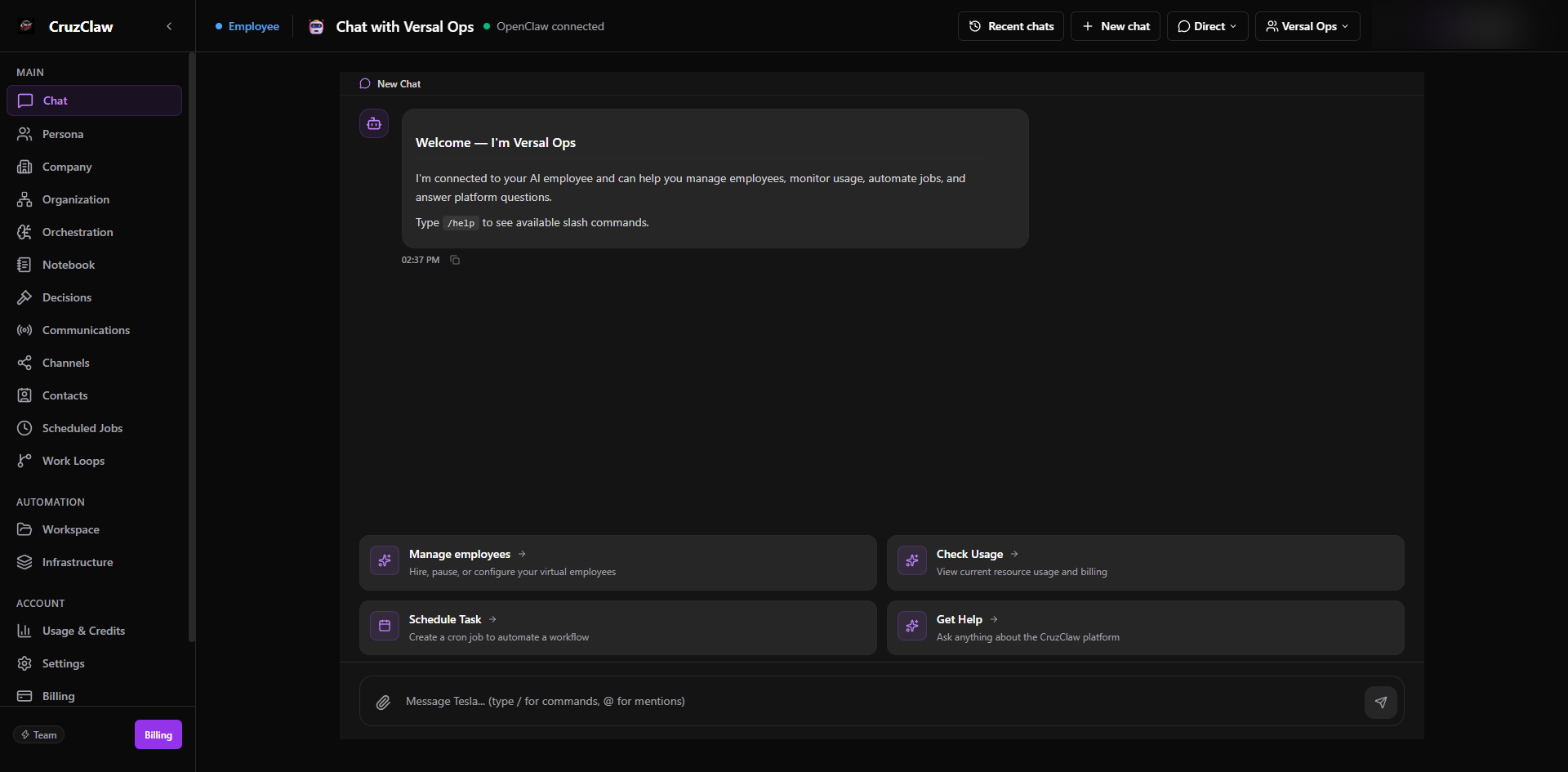
Slash commands let you, the account owner, direct employees, decisions, and orchestration tasks directly from a chat message: no dashboard visit required. Commands are executed deterministically by the backend the moment your message arrives: no AI turn is spent deciding what you meant, and the reply comes straight back on the same channel.
For the machine-generated table of every command, see the slash command reference. This page explains how commands work and shows each one in action.
Where commands work
Section titled “Where commands work”| Surface | Read-only commands | Commands that change things |
|---|---|---|
| Slack | ✅ /decisions, /comms, /help |
✅ All commands |
| Dashboard chat | ✅ /decisions, /comms, /help |
✅ All commands |
✅ /decisions, /comms, /help |
❌ Refused with an explanation | |
| None | Email is not a command surface |
Slack and the dashboard chat are verified surfaces: Slack events are signature-verified by the backend, and the dashboard chat is authenticated by your login session. Either one proves you are the account owner independently of any employee, so mutating commands (/approve, /reject, /ask, /do, /communicate, /run) run there.
WhatsApp is different. There, the sender identity is reported by software inside the employee’s own container. A prompt-injected employee could lie about it. So on WhatsApp only read-only commands run. If you send a mutating command from WhatsApp, you get a reply telling you where verified execution lives, and nothing is changed.
Email has no command handling at all: an email that happens to start with / is ordinary inbound text and goes to the employee like any other message.
How the router decides a message is a command
Section titled “How the router decides a message is a command”A message is treated as a command only when all of this holds:
- It starts with
/: everything from the first non-blank character. - You are the verified owner on that channel. On Slack and WhatsApp, your sender id (Slack member id / WhatsApp number) is matched against the owner contacts on your account. In the dashboard chat, your session already proves ownership.
- The command is one the product knows. Only the nine commands below are intercepted. Anything else (
/foo,/remind, a typo like/approv) falls through to the normal inbound pipeline and reaches the employee as ordinary text.
Anyone who is not the verified owner gets the fall-through treatment too: their messages always reach the employee as normal text, even if they start with a slash.
Every executed command is recorded in the audit log with the channel it came from, and the reply is delivered back through the same channel’s existing send path (Slack reply, WhatsApp reply, or a persisted assistant message in the dashboard chat).
Commands
Section titled “Commands”/decisions: list pending decisions
Section titled “/decisions: list pending decisions”Syntax: /decisions
Shows up to 20 of your decisions whose status is PROPOSED, newest first, each with the proposing employee’s name and age:
Pending decisions:1. Switch CRM to the sales tier — Maya (2h ago)2. Renew the Acme contract before Friday — Leo (1d ago)Reply when there is nothing waiting: No pending decisions.
The numbers are your personal, current listing: the router stores the number → decision id mapping for 24 hours, and /approve or /reject with a number resolves against it. Run /decisions again before approving if the list may have changed. As a fallback, /approve and /reject also accept the last 4–8 characters of a decision’s id.
/approve: approve a pending decision
Section titled “/approve: approve a pending decision”Syntax: /approve <n> [action text with @employee and #integration]
Without action text, the decision is approved as-is. With action text, the text is routed through the Action Box first: the decision is approved only when routing succeeds. If a mention is ambiguous or unknown, or an integration tag is not in the connection registry, nothing is routed and the decision is not approved.
Action text must mention at least one employee (@name), and may tag integrations (#gmail, #slack, #notion, …). Mention and tag parsing is mechanical: names are matched against your active employees case-insensitively, and the longest unique match wins; an ambiguous name lists the candidates and stops.
Worked example: you reply to Maya’s decision card, or send from Slack:
/approve 2 @Maya please send the revised proposal to Acme #gmailThe router resolves @Maya, maps #gmail to the Google Workspace capability, checks that Maya holds it, creates one durable owner task, then approves the decision. Reply:
Decision "Renew the Acme contract before Friday" approved.Action routed — task 9f3c1a72-….Coverage:Maya: coveredIf no mentioned employee holds the required capability, the task goes to the first mention anyway and the reply carries a warning line: ⚠ No mentioned employee holds the required capability — the task went to the first mention. If the number doesn’t resolve: Decision "5" not found. Run /decisions for the current list.
See Decisions and the Action Box for what “routing” does in detail.
/reject: reject a pending decision
Section titled “/reject: reject a pending decision”Syntax: /reject <n> <reason>
The reason is required: rejecting without one returns the usage line. The decision’s status becomes REJECTED and your reason is recorded on the decision.
Worked example:
/reject 2 Acme's budget is frozen this quarter, hold off until next FYReply: Decision "Renew the Acme contract before Friday" rejected.
/ask: ask an employee a question
Section titled “/ask: ask an employee a question”Syntax: /ask <employee> <text>
Sends the question to one of your active employees through the same durable owner-task door the dashboard uses. The employee’s answer is routed back to you as a notification. Employee names can be multi-word: the router consumes the longest leading phrase that matches exactly one employee, and the rest is the question.
Worked example:
/ask Maya what did Acme say about the pricing page?Reply:
Asked Maya: "what did Acme say about the pricing page?" (task 9f3c1a72-…).An ambiguous name lists candidates ("ma" is ambiguous — did you mean: Maya (maya), Marcus (marcus)?); an unknown name errors out. Either way, no task is created.
/communicate: message employees or announce to the team
Section titled “/communicate: message employees or announce to the team”Syntax: /communicate @employee [...] <text>
Leading @mentions are the addressees; the first non-@ word opens the message. Each mentioned employee receives the text as an owner task through the same durable door as /ask.
Worked example:
/communicate @Maya @Leo standup is moved to 9:30 starting MondayReply: Communicated to Maya (communication 9f3c1a72-…), Leo (communication b8d2e044-…).
With no @mention, the text is posted as a team announcement: one durable communication row with no specific addressee, nothing enqueued:
/communicate reminder: Q4 goals review is ThursdayReply: Team announcement created (communication 9f3c1a72-…).
/do: route an action with no decision card
Section titled “/do: route an action with no decision card”Syntax: /do <action with @employee and #integration>
The free text is routed through the Action Box exactly like the action text of /approve, but with no decision attached (source: owner command). At least one @employee mention is required.
Worked example:
/do @Maya book a follow-up call with Acme #google-calendarReply (same routing summary format as /approve):
Action routed — task 9f3c1a72-….Coverage:Maya: covered/run: execute an orchestration task
Section titled “/run: execute an orchestration task”Syntax: /run <task id or title fragment>
Finds your most recent orchestration task whose id matches exactly or whose name contains the fragment (searching the latest 20), and starts it with the same semantics as the dashboard’s Execute button: a task that is already RUNNING or REVIEWING is not started again, and the run itself is detached: it can take minutes, and failures land in the task log rather than the chat.
Worked example:
/run weekly pipeline digestReply: Started "Weekly pipeline digest" (c4a9e1d0-…). If it is already in flight: Task "Weekly pipeline digest" is already running — not started again. If nothing matches: No orchestration task matches "weekly pipeline digest".
/comms: recent communications
Section titled “/comms: recent communications”Syntax: /comms
Lists the latest 10 communications (the same data the dashboard’s Communications page shows), one line each:
1. [TASK] Owner → Maya: Acme follow-up call (sent, 3m ago)2. [BRIEFING] Owner → Owner: Team announcement (sent, 1h ago)Reply when there is nothing yet: No communications yet.
/help: the command list
Section titled “/help: the command list”Syntax: /help
Replies with the usage line for every command: the same list as the generated reference, straight from the backend command table.
Cheat sheet
Section titled “Cheat sheet”| Command | What it does |
|---|---|
/decisions |
List pending decisions, numbered for /approve and /reject |
/approve <n> [action] |
Approve a decision; optional action text routes through the Action Box first |
/reject <n> <reason> |
Reject a decision; the reason is required |
/ask <employee> <text> |
Send an employee a question; the answer reports back to you |
/do <action> |
Route an action through the Action Box with no decision card |
/communicate @emp … <text> |
Message mentioned employees, or post a team announcement with no @mention |
/run <id or title> |
Execute the most recent matching orchestration task (never doubled) |
/comms |
Show the latest 10 communications |
/help |
Show the command list |
Last verified: 2026-10-24 against the shipped codebase.